
Global Settings - VS Code configuration
With a configuration that enables the MIDI plugin's support for IntelliSense and Snippets for JavaScript, you get three types of coding help in VS Code.
- When creating a new event function, start typing "On" to see a list of event functions the plugin calls when the corresponding events occur. From this list, you can select an entry, or press Tab to select the first entry and insert a complete stub for the function into the code.
- When using injected objects, such as ui and midi, you will get IntelliSense that lists available functions and properties.
- When you hover over a MIDI function, property, or object, you will see tooltips based on the plugin's definition of those objects.
To enable the MIDI plugin's IntelliSense and Snippets for JavaScript in VS Code, you need to take two steps.
- Install the support files for snippets and IntelliSense.
- Tell VS Code to use a local copy of TypeScript.
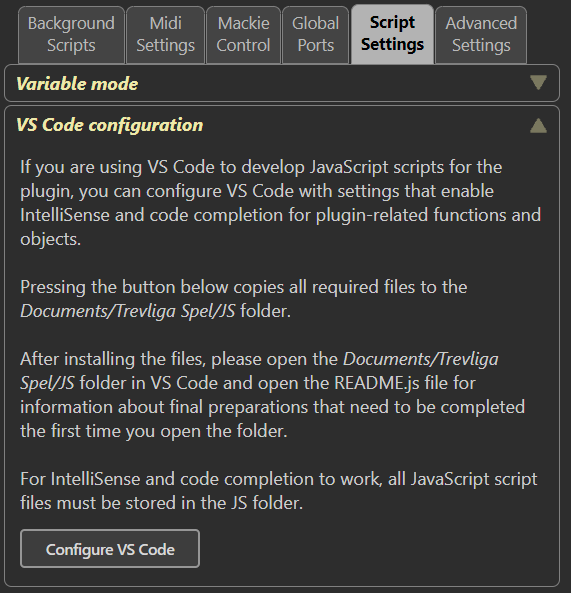
The first action is performed in the plugin, in the VS Code Configuration section of the Script settings tab within Global Settings. You only need to click the button and confirm that you want to proceed. The expected response is a message confirming that the files have been successfully copied.
The plugin will create the Documents/Trevliga Spel/JS folder if it doesn't exist. It will then copy the necessary files to that folder. The plugin will not modify any other files in that folder, so in case of a reinstallation or upgrade, you can safely perform this step without affecting other scripts in that folder.
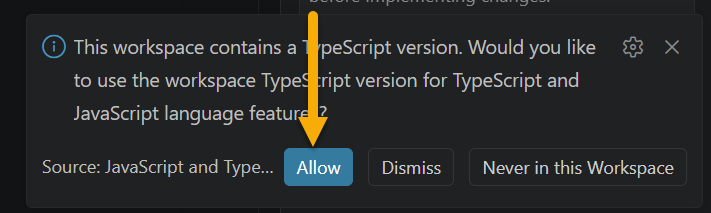
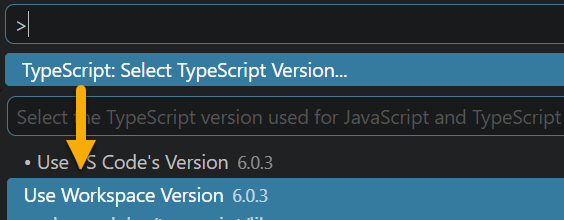
The second action is performed in VS Code. Start VS Code, open the Documents/Trevliga Spel/JS folder, and open the README.js file.
In the lower-right corner of VS Code, a pop-up prompt with an "Allow" button should appear. Click it. Please note that this pop-up may be visible for only a limited time. If you miss the "Allow" button while the pop-up is displayed, you will need to perform the same action differently.
If that is the case, press Ctrl-Shift-P (Cmd-Shift-P on Mac), locate the setting "TypeScript: Select TypeScript Version...", and then select "Use Workspace Version".
One of these two actions must be performed; otherwise, you will not have full plugin-based IntelliSense and Snippet support.
Once these two steps are completed, everything should be set to go. Two things to note:
- All script files you create must be stored in the same folder as the support files, i.e., in the JS folder.
- After installation, you can duplicate the JS folder, including the support files, to create additional JavaScript folders if you want to separate scripts by function. The important thing is that all support files are present, as in the JS folder (Mac users: note that there's a hidden ".vscode" folder), and that scripts are created in the same folder as the support files (i.e., alongside README.js).