
JavaScript setup
Overview
The Script button and dial allow custom actions to be performed when specific events occur, such as a button press, dial rotation, and received MIDI commands.
The script button is meant to fill gaps between the other button types. It is not as good as the other buttons at keeping state, and it is not as good at automatically synchronizing incoming MIDI messages with sent messages. What it is good at is being very flexible in determining which actions to take when an event occurs.
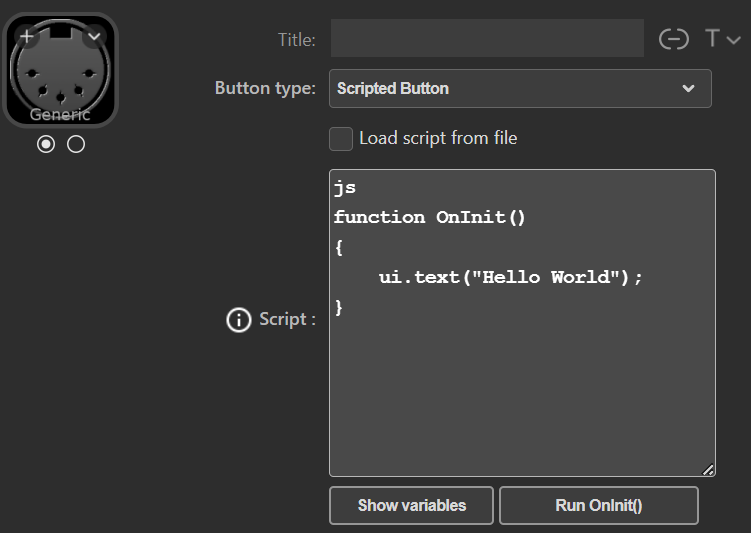 The script can be entered in the Script field or loaded from a file. Since the plugin area in the Stream Deck editor is quite limited, it may be more convenient to edit the script in an external editor.
- A JavaScript script in the editor must have the text "js" (without apostrophes) as the only text on the first line. Without this JavaScript marker, the plugin will treat the script as a midiScript.
- A file with the extension ".js" will be treated as JavaScript; all other extensions will be treated as midiScript.
Script syntax
This documentation is not intended to be a JavaScript tutorial; if you want to create JavaScript scripts, you need to learn the basics of JavaScript coding elsewhere.
JavaScript scripts use plain JavaScript and interact with the plugin in two complementary ways:
- Predefined event handler functions receive notifications from the plugin. Event handlers are ordinary JavaScript functions with reserved names. If a function with a recognized name exists, the plugin automatically calls it when the corresponding event occurs.
Examples:
• OnInit()
• OnKeyPressed(state)
• OnControlChangeReceived(channel, control, value)
• OnGlobalVariableChanged(name, value)Get the full list of event handlers on the Events page.
- Predefined API objects are injected into the script as a set of global objects. These objects serve as the script’s toolbox for controlling UI, MIDI, timers, variables, lists, layouts, and utility functions.
Example objects:
• ui
• gvar
• midiGet the full list of action objects on the Actions page.
For a complete list of language features supported by the JavaScript engine used, please visit this page
Real-time syntax check
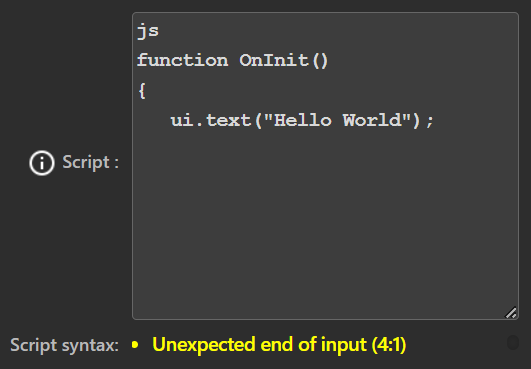 The plugin will perform a syntax check on the script and display a message if anything is wrong.
If you load the script from a file, the syntax check runs immediately when a script change is saved. If you enter the script in the Script field, the plugin will try to avoid interfering with editing by checking the script only when you have not made any changes for three seconds.
If you pause for more than three seconds while entering or editing your script, the plugin will check the syntax and display potential error messages. If you know you are not finished, you can ignore any messages the plugin displays. This delay also means that if you correct an error, the error message will not be removed until three seconds after you have stopped typing.
The syntax check is performed by the JavaScript engine and captures plain JavaScript syntax errors, such as the missing trailing "}" in this example. The position references line:column, where the first JavaScript line = 1. In the example, "Unexpected end of input (4:1)" means that "}" is expected at line 4, column 1. Messages might also be displayed when the script is executed for issues not detected by simple syntax checks.
Midi channel configuration
In the Midi protocol, the channel is always defined from 0-15. For humans, it is more natural to start counting at 1, and many (all?) daws and VSTs show the Midi channel in the range 1-16 even though the range 0-15 is still used on the protocol level.
The Midi plugin adapts to this "human" numbering of midi channels and uses the range 1-16, and when specifying a channel in the script, you should use the range 1-16.
The Script button in a Multi Action
The Script button works the same in a Multi Action as it does stand-alone. Please note that incoming midi commands trigger script commands only within the Script button itself; the other actions in the Multi Action are not run.
Loop detection
Creating loops when defining script commands for incoming Midi events is theoretically possible. The plugin has a loop detection where it stops responding if the same midi message is received more than ten times within one second.
Example: Even though I strongly suggest not to 😕 , it is, e.g., possible to:
create a script command triggered by an incoming Play command and respond by sending a Stop command.
create another script command triggered by an incoming Stop command and respond by sending a Play command.
Depending on the response from the daw, you may end up in a loop of Play/Stop commands, and in such cases, the loop detection will activate and break the loop.